Business Strategy
How to Set Up Zoom Livestream Classes That Actually Work (For Wellness Pros)
You became a yoga teacher, Pilates instructor, or health coach because you love helping people move, breathe, and feel better. Not because you love troubleshooting video conferencing software.
But here's the reality: if you teach live online classes, Zoom is almost certainly part of your life. And while it's not the most glamorous tool, it's the most reliable option for live wellness classes. Your students already know how to use it. It works on every device. And when it's set up properly, it fades into the background so you can focus on what you actually do best: teach.
This guide covers everything you need to get Zoom working smoothly for your live classes, from initial setup to recording workflow to fixing the issues that inevitably pop up.
Why Zoom Still Wins for Live Wellness Classes
There are alternatives out there. Google Meet, Microsoft Teams, various webinar platforms. But for live movement-based and coaching classes, Zoom has three advantages that matter:
Student familiarity. Most of your students already have Zoom installed and know how to join a meeting. Zero friction.
Reliability. Zoom handles variable internet connections better than most alternatives. For a yoga class where the teacher is moving around a room, this matters.
Recording. Cloud recording with automatic processing makes your replay workflow dramatically simpler.
The goal isn't to become a Zoom expert. The goal is to set it up once, correctly, so you rarely think about it again.
Setup Checklist: Getting Zoom Connected
Before your first live class, work through this setup list:
Connect your Zoom account
Link your Zoom account to your teaching platform. This allows your platform to automatically generate Zoom meeting links for each scheduled class. Your students click "Join Class" and they're in, no manual link sharing required.
Enable cloud recording
In your Zoom settings (at zoom.us, not in the app), enable cloud recording and set it to start automatically when the meeting begins. This way you never forget to hit record, and the recording is stored in the cloud rather than eating up space on your computer.
Configure recording settings
Record active speaker with shared screen (this captures your teaching view).
Record gallery view as a secondary option if you want to see participants.
Enable audio transcript if you want searchable recordings.
Set recordings to automatically delete from Zoom cloud after 30 days (once they've been uploaded to your platform, you don't need them sitting in Zoom).
Set up your waiting room (or don't)
Waiting rooms add a layer of security but also add friction. For most wellness classes, they're unnecessary. If your class links are shared only with enrolled students through your platform, the link itself is the access control. Disable the waiting room to let students join seamlessly.
If you teach a class that's open to the public or shared on social media, keep the waiting room on so you can screen who enters.
Calendar sync
Connect your class calendar to Zoom so that each scheduled class automatically generates a unique Zoom meeting. This eliminates the manual step of creating a Zoom meeting and pasting the link for every single class.
The Recording Workflow: From Live Class to Replay
One of the biggest benefits of live classes is that every one becomes a piece of on-demand content for your library. Here's how the workflow should look:
Teach your live class. Zoom records automatically in the cloud.
After class ends, Zoom processes the recording. This usually takes 15-60 minutes depending on length.
Upload to your platform. Once processing is complete, upload the recording to your course or membership library. Many platforms can pull directly from Zoom's cloud.
Trim if needed. Cut the first minute of "Can everyone hear me?" and the last minute of goodbyes. Your students watching the replay will thank you.
Make the replay available. Add it to the relevant section of your membership or course. Consider organizing by date, by type (gentle yoga, power flow, meditation), or by instructor if you have multiple teachers.
Download vs. stream
Give your students the option to stream replays (watching in the browser) rather than requiring downloads. Streaming is easier on mobile devices and doesn't eat up their storage. Offer a download option as a bonus for students who want offline access.
Common Issues and How to Fix Them
Recordings not uploading
The most common reason: cloud recording isn't enabled, or it's set to record locally instead of to the cloud. Check your Zoom settings at zoom.us (not in the desktop app, which may show different settings). Make sure "Cloud recording" is toggled on under the Recording tab.
Calendar events not showing the Zoom link
If your scheduled classes aren't generating Zoom links, the integration between your platform and Zoom may need to be re-authorized. Disconnect and reconnect your Zoom account in your platform settings. Also check that you're creating events through the platform (not manually in Zoom) so the integration can do its job.
Trim tool not working
Some browser-based trimming tools have compatibility issues with certain browsers. If the trim feature isn't appearing or isn't responding, try switching to Chrome. Clear your browser cache if Chrome isn't working either.
Audio-only recordings
If your recordings capture audio but show a black screen, check your Zoom recording settings. Make sure you have "Record video during screen sharing" enabled and that gallery view recording is turned on. Also verify that your camera was actually on during the class, since Zoom can only record what it receives.
Poor recording quality
Recording quality depends on your upload speed and Zoom settings. Enable HD video in your Zoom settings (under Video). Use a wired internet connection if possible. If your internet is unreliable, prioritize a stable connection over HD, since a smooth standard-definition recording is better than a choppy HD one.
Best Practices for Live Wellness Classes on Zoom
Camera setup for movement
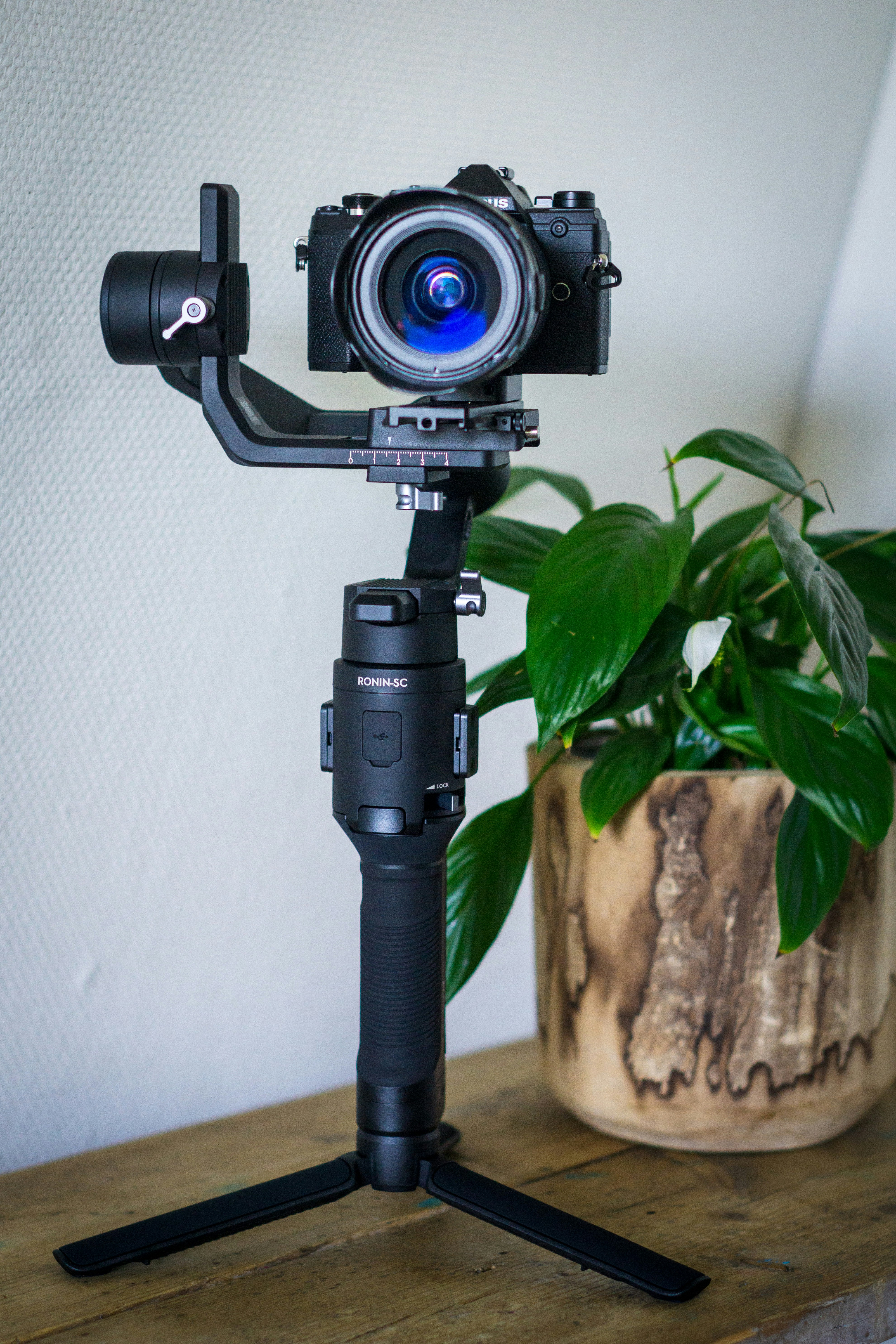
For yoga, Pilates, dance, or any movement-based class, your students need to see your full body. Set your camera at hip height, far enough back to capture you from head to toe with room to move. A tripod or shelf works better than a laptop on a desk, which typically shows you from the chest up.
Audio setup for music and voice
If you play music during class, use Zoom's "Share Computer Sound" feature or play music from a separate speaker near your microphone. Test the balance before class. Your voice should always be louder than the music. Consider using an external microphone (even a basic lavalier mic) so students can hear your cues clearly.
Managing late joiners
Students will join late. It happens. Disable the join notification sound in Zoom settings so a chime doesn't interrupt your flow. If you use a waiting room, consider assigning a co-host who can admit latecomers so you don't have to stop teaching.
Screen sharing for presentations
If you teach workshops or coaching sessions that use slides, learn the Zoom "Share Screen" feature. Use "Share Portion of Screen" if you want to show slides while keeping your face visible. For movement classes, you typically won't need screen sharing at all.
Set It Up Once, Then Teach
The technical setup for Zoom is a one-time investment. Once your account is connected, your recording settings are configured, and your workflow is established, live classes become routine. The tech disappears and the teaching takes center stage.
If something goes wrong during a class, stay calm. Your students are there for you, not for perfect technology. A quick "Give me one moment to sort this out" is all you need. They'll wait.
Keep Reading
Ready to teach live online classes without the tech headaches? Start your free trial of Marvelous and get built-in Zoom integration, automatic recordings, class scheduling, and everything else you need to run live wellness classes from anywhere.
Marvelous is Your All-in-One Platform for Stunning Courses, Memberships & Live Classes
Start creating and earning on Marvelous.