
Tools + Tech
How to Use Your Phone as a Webcam (for Teaching Online)
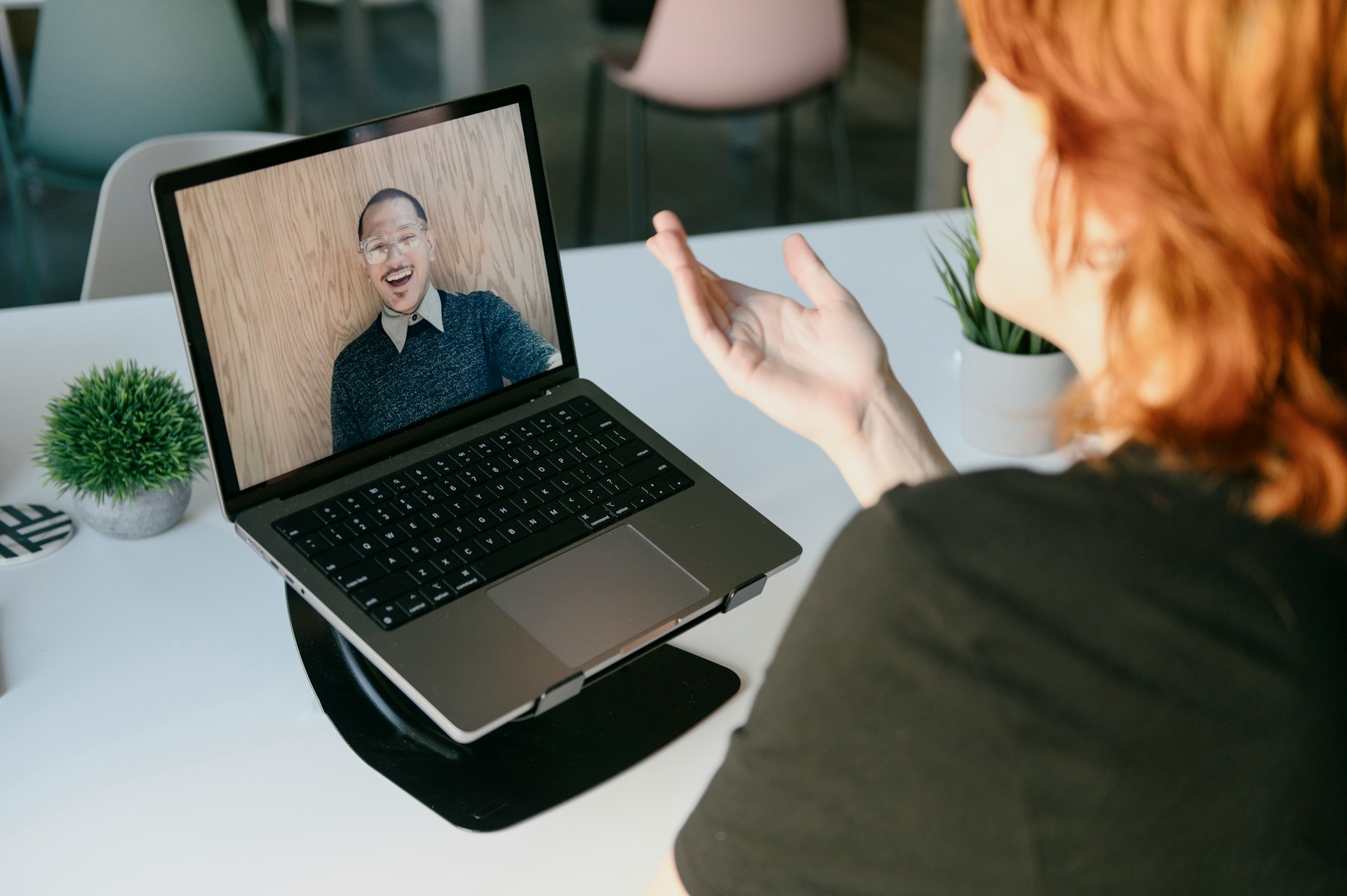
The camera built into your laptop was designed for conference calls with your coworker, not for teaching a vinyasa flow or demonstrating a coaching framework. The good news is that the phone in your pocket almost certainly has a better camera than whatever is embedded in your laptop lid, and turning it into your webcam takes about five minutes.
For wellness entrepreneurs teaching live classes, recording online courses, or running group coaching sessions, video quality matters more than you might think. Students who can clearly see your form, your face, and your demonstrations stay engaged longer and come back more often. You do not need a $1,200 DSLR to get there.
This guide walks you through the simplest ways to use your iPhone or Android phone as a webcam, including the free options that work best for live teaching and course recording.
Why Your Phone Camera Is Usually Better Than Your Laptop Webcam
Most laptop webcams are built for quick meetings, not teaching. Your phone camera is built for photos and video, so it usually gives you:
Better low-light performance
Sharper image quality
More natural skin tones
Better autofocus as you move
That matters when your work is visual. If you are cueing a student through Warrior II, they need to see your shoulder position clearly. If you are coaching breath patterns, clients need to see your face and expression. If you are teaching Pilates, students need to track your spine and alignment cues, not squint at a grainy silhouette.
A better camera helps your students feel safer and more supported. It also makes your teaching feel more professional, even if you are working from a simple home setup.
What You Need for a Phone-as-Webcam Setup
1. Your phone
Any relatively recent iPhone or Android can work. iPhone with iOS 15+ or Android 11+ is ideal, though older versions can work with some apps.
2. A webcam app (or built-in option)
For most teachers, these are the easiest options:
iPhone + Mac: Apple Continuity Camera (built in, no extra app needed)
iPhone or Android + Mac/Windows: Camo, EpocCam, DroidCam, or Iriun
Pick one app and stick with it once it is stable. Constantly switching tools right before class creates stress you do not need.
3. A mount or tripod
Skip the "lean phone against a mug" method. Use a phone tripod, a clamp mount on a shelf or desk, or a ring-light stand with a phone holder. For movement classes, stability is everything. If your camera shakes every time you step back, students lose focus.
4. Charging cable or power source
Video drains battery quickly. If you are teaching 60-90 minute sessions, plug your phone in during class.
5. Good lighting
Good lighting does more for your video quality than any camera upgrade. Position yourself in front of a window for natural, evenly diffused light without harsh shadows or bright glares. You can supplement with a simple desk lamp or affordable studio kit.
Quick rule: light your face and body from the front or at a 45-degree angle. Avoid strong backlight from a bright window behind you. On a tight budget? Read our tips for how to light your videos on the cheap.
6. Crisp audio
An external microphone can significantly improve the audio quality of your classes. Built-in phone mics pick up environmental noise: typing, pets, other people in the room. Even an inexpensive lapel mic provides clearer sound and cuts background noise more effectively.
7. A fast internet connection
Streaming in 1080p requires at least 5 Mbps upload speed. If you are streaming with multiple devices at once, your bandwidth requirements increase. Before going live, always test your internet connection.
Step-by-Step: iPhone Setup
Option A: iPhone + Mac Using Continuity Camera (Easiest)
Step 1: Check requirements. Mac and iPhone signed into the same Apple ID. Wi-Fi and Bluetooth turned on for both. iPhone nearby and locked (the camera still works when locked).
Step 2: Mount your iPhone. Place it where students can see what they need: face-level for coaching calls, wider framing for seated practices, or full-body for yoga and fitness demos. Use the rear camera for better quality.
Step 3: Select your iPhone as the camera in Zoom. Open Settings, then Video, and choose your iPhone from the camera dropdown. It may appear as "iPhone Camera."
Step 4: Select your microphone intentionally. You can use your phone mic, your computer mic, or a headset/lapel mic. For movement classes, clear audio matters as much as video.
Step 5: Run a private test session. Start a test meeting and practice walking in and out of frame, demonstrating floor and standing movements, and speaking at teaching volume. This 10-minute test prevents mid-class panic.
Option B: iPhone + Windows (or if Continuity Camera is not available)
Step 1: Install a webcam app (like Camo or EpocCam) on both your phone and computer.
Step 2: Connect via USB if possible for stability. Wi-Fi works but USB reduces lag.
Step 3: In Zoom video settings, choose the app camera (for example, "Camo Camera").
Step 4: If your app allows it, lock focus and exposure so brightness does not constantly shift while you move.
Step-by-Step: Android Setup
Step 1: Choose an app: DroidCam, Camo, or Iriun. Install it on your phone and the companion software on your computer.
Step 2: Connect via USB (recommended for live teaching). Wi-Fi is fine for testing but USB gives you fewer dropped connections, lower latency, and more consistent image quality.
Step 3: Allow camera and microphone permissions when prompted.
Step 4: In Zoom, open Settings, then Video, and select the app camera.
Step 5: Run a full rehearsal of your class flow: intro talk, standing sequence, floor demo, and closing.
Best Camera Angles for Movement-Based Classes
Full-body view for form-based classes
For yoga, Pilates, barre, or mobility work, students need to see your full range of motion. Place the camera 6-10 feet away at about hip-to-chest height. Do a quick test: can someone see your feet in Downward Dog and your fingertips in Mountain Pose? If not, adjust the distance.
Closer framing for coaching and breathwork
For life coaching, meditation, or breath sessions, frame your head and upper torso with your eyes near the top third of the frame. Use soft front lighting for a warm, connected feel.
Side angle for alignment demos
When teaching spinal position or hinge mechanics, briefly rotate your mount to show a side angle. You do not need a multi-camera studio. Just explain to students what they should observe as you shift the view.
Mark your teaching zone
Use tape on the floor to mark where you stay in frame. It sounds simple, but this prevents half your class from happening off-camera.
Common Mistakes (and Easy Fixes)
Backlighting yourself: You appear dark while the window behind you glows. Fix: face the window, or close blinds and add light in front of you.
Phone battery dies mid-session: Start above 80% and keep your phone plugged in. Use airplane mode + Wi-Fi to prevent notification interruptions.
Camera keeps hunting focus: Use enough light and lock focus/exposure in your app settings.
Audio echo or mismatch: Choose one primary mic source. If using your computer mic, mute the phone mic inside the app.
Overcomplicated setup: Pick one reliable app, one camera angle, one backup plan. Consistency beats complexity.
Pre-Class Checklist (2 Minutes)
Before each session, run through these checks:
Phone mounted and charging
Camera selected correctly in Zoom (or your streaming platform)
Mic selected and tested
Lighting checked, no heavy shadows
Frame includes what students need to see
Notifications silenced
Backup plan ready (laptop cam as fallback)
This routine helps your classes start calm and on time.
How to Use Your Phone as a Webcam on Marvelous
Marvelous integrates with Zoom and also offers a built-in live-stream broadcasting system. Once you have your phone-as-webcam app installed:
With Zoom: Open Zoom, go to Settings, then Video, and select your phone from the camera dropdown. When you schedule a Zoom-based class on Marvelous, the integration handles the rest.
With Marvelous broadcasting: Start your broadcast in Marvelous, select your phone or webcam app from the Video dropdown in the settings screen, and click Start Broadcast.
When you finish your live stream, the recording appears in your video library, ready to be added to any course, membership, or program.
Final Thoughts
You do not need expensive camera equipment to create high-quality virtual wellness classes. In most cases, your phone is already the best camera you own.
If you have been hesitating, start simple: one app, one tripod, one test session. Then refine from there.
Keep Reading
Great video deserves a great platform behind it.
Marvelous handles the rest: livestream classes, on-demand courses, student scheduling, and payments in one place. Built for wellness entrepreneurs who would rather teach than troubleshoot tech. Start your free trial
Marvelous is Your All-in-One Platform for Stunning Courses, Memberships & Live Classes
Start creating and earning on Marvelous.